See both versions together
Compare the original and modified text side by side, with changed lines and text highlighted.
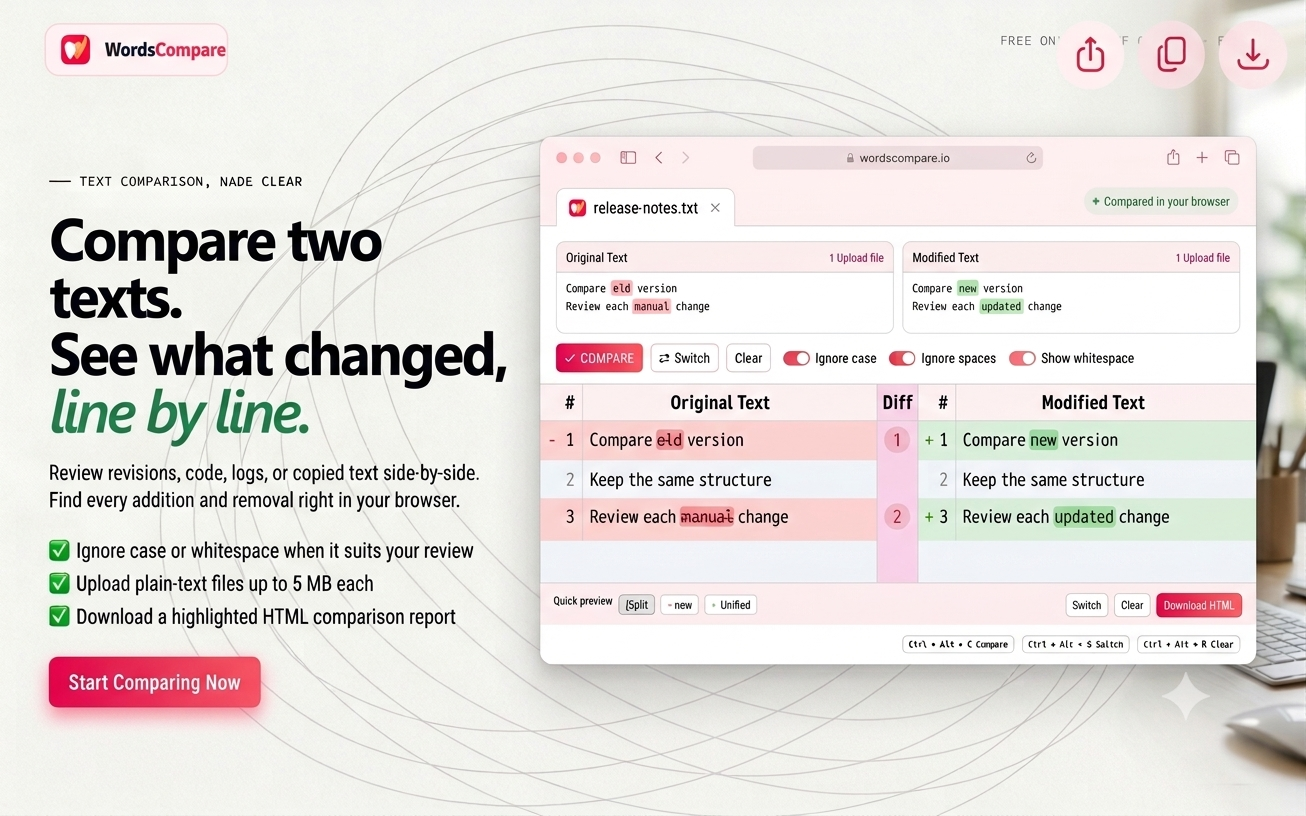
Paste the original and revised versions to compare them line by line. See added, removed, and edited text side by side, then move through each change with the numbered markers or previous/next controls.
Free online diff checker
Paste an original version and an updated one to find added, removed, and edited text. Review both versions side by side, right in your browser.
What it does
See what changed, focus on the differences that matter, and save a copy when you’re done.
Compare the original and modified text side by side, with changed lines and text highlighted.
Select a numbered marker or use the previous and next controls to jump between differences.
Choose whether capitalization or whitespace differences should affect the comparison. Line breaks still matter.
Upload supported text, code, or data files up to 5 MB into either comparison box.
Save the displayed comparison as an HTML report with its line numbers and highlights.
Your text isn’t uploaded to our servers to generate a comparison.
How it works
Paste the earlier version into Original Text, or upload a supported file.
Paste the updated version into Modified Text, or upload its file.
Turn on Ignore case or Ignore spaces if you want to disregard those differences.
Select Compare, then navigate the numbered differences. Download the result as HTML if needed.
Made for everyday reviews
This tool compares text; it doesn’t compile or validate code, merge versions, or check for plagiarism.
Common tasks
Compare versions whenever you need to understand what changed in a document or text sample.
Upload supported text files directly into the comparison fields, or open other files and paste their contents. Each uploaded file must be 5 MB or smaller.
Understand the difference
Comparison helps you review edits; merging combines content into a new version.
| Text comparison | Text merging |
|---|---|
| Identifies differences between versions | Combines content from multiple versions |
| Helps review changes | Helps consolidate edits |
| Supports proofreading and verification | Supports combining revisions |
| Shows what changed | Creates a combined version |
WordsCompare identifies differences between two text inputs; it doesn’t merge them into a new version.
Other ways to compare
The right method depends on whether you’re checking spreadsheet values, desktop files, or source code.
Excel can compare values in two columns using formulas and conditional formatting. For copied text, WordsCompare offers a quick browser-based option.
Notepad++ supports file comparison through its Compare plugin. WordsCompare is another option when you want to paste two text inputs into a browser.
VS Code includes a built-in file comparison feature. For quick comparisons of copied code snippets or text, you can use WordsCompare in your browser.
Your privacy
WordsCompare compares the text you provide without uploading it to our servers. If you’re working with sensitive information, use a device and service approved for that information.
Questions
The best tool depends on your needs. Look for an easy-to-use interface, clear results, useful comparison options, and transparent privacy practices. WordsCompare lets you compare two text inputs in your browser for free.
Paste the original and modified text into their boxes, or upload supported files, then select Compare. Review the highlighted changes side by side.
Yes. Upload a supported text, code, or data file into each box. Each file can be up to 5 MB. You can also copy text from a file and paste it into the tool.
It treats whitespace runs within a line as equivalent and ignores whitespace at the beginning or end of a line. Line breaks remain significant, and spaces between words are not removed entirely.
Yes. Enable Ignore case to disregard capitalization differences between the two text inputs.
The comparison highlights differences between the two inputs, helping you review changed lines and text. The exact display depends on how the content differs.
Yes. Compare copied code snippets, SQL queries, configuration text, JSON, XML, and application output. The tool compares text; it doesn’t compile code or validate syntax.
Yes. Select a numbered marker in the center of the results, or use the previous and next controls. Navigation wraps back to the first difference after the last one.
Yes. After comparing, select Download result to save the current side-by-side comparison as an HTML report.
No. Your text isn’t uploaded to our servers to generate the comparison.
No. It shows differences between the two texts you provide. It doesn’t create a merged version or compare your text against external sources.
Yes. Open WordsCompare in a supported mobile browser to compare text without installing a desktop application. A larger screen may make long results easier to review.
Large comparisons may be simplified, and the results display is limited to 3,000 rows. Follow any notice shown with the results if a limit applies.
No. You can use WordsCompare through a supported web browser without installing a separate desktop application.
Ready when you are
Review your versions side by side and see the changes clearly.
Start comparing